

Treat families as project assets
A Revit family is more than a symbol or shape. It can carry nested content, formulas, visibility rules, parameters and geometry that affect model behavior. Imported content may make schedules noisy, editing slow or output inconsistent. Structural teams should manage families as controlled project assets with an owner and purpose. Imagine a vendor connection family offered for a conceptual model. Before loading it into production, define the intended use: visualization, coordination, detailing or fabrication. The same family may suit one use and fail another. Make the intake gate proportional to risk, but give every item at least a basic identity, behavior and performance check.
Start in a sandbox
Load unfamiliar content into a blank test project or disposable copy. Record the source, family name, file size and date received. Inspect its category, available types and nested elements. Place a few instances and exercise likely parameters. Look for warnings, missing references, unexpected geometry, complicated visibility behavior and inconsistent names. Compare plan, elevation, section and 3D at relevant scales. Content that looks correct in one view can confuse elsewhere. A thumbnail or vendor webpage is not enough for a library decision. Keep the sample separate from production until a reviewer accepts it for the stated purpose.
Audit fields for purpose
Review every exposed field in type and instance properties. Ask who uses it and where: geometry, tag, schedule, specification or export. Shared parameters can make fields available across families and schedules, but an oversized or poorly governed set can clutter the project’s field list. Names can conceal different definitions. Check whether each value belongs to the type or each occurrence. A section series may be common to a type, while a review note may differ by member. Test tags and schedules directly. Remove irrelevant manufacturer fields unless there is an agreed downstream use. Keep the source definition file when required.
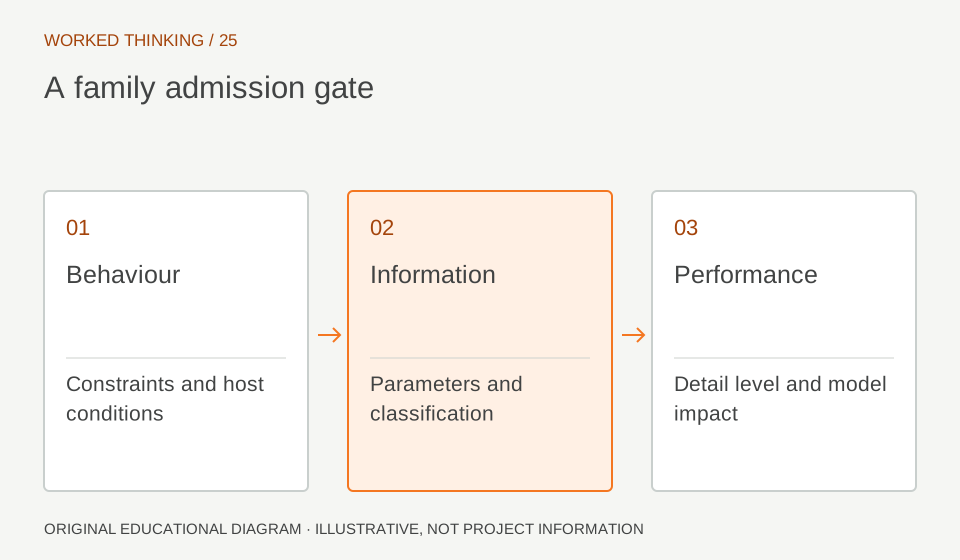
Read diagram notes
- Behaviour
- Constraints and host conditions
- Information
- Parameters and classification
- Performance
- Detail level and model impact
Test geometry and editing
Place the family in representative orientations and adjust likely parameters. Check dimensions and legibility in intended views. For structural content, review how the object meets adjacent members visually. These checks do not certify fit or capacity; they reveal whether the family behaves predictably. Try common actions: copy, rotate, change type and edit a key dimension. Watch for slow selection when several instances are present. If nested objects are used, inspect whether they can be scheduled individually. Document limitations rather than compensating with unexplained project-specific workarounds. Keep a minimal test case another modeller can repeat.
Measure impact in context
A large file or slow family warrants investigation but is not a universal rejection threshold. Measure impact in a representative model: load time, placement behavior, selection response and file growth before and after insertion. Compare alternatives under similar conditions. Rich detail may fit a small detail library but burden a model with thousands of instances. Compare detail with expected viewing scale and deliverable. Remove detail that cannot be seen or used while retaining requirements. Record test conditions; avoid broad performance claims from one workstation or insertion.
Peer review and release
Ask a second Revit user to place and edit the family without coaching. Give a short task: select a type, set values, create a schedule row and produce a view at target scale. Their difficulty reveals unclear names or hidden assumptions. Keep a reviewed source file and version record. Release with a concise note describing intended use, categories, required parameters and known limits. If a vendor updates it, repeat checks. Retire older variants from shared libraries with a clear replacement route. This matters most when multiple projects rely on shared content.
Acceptance is not design approval
A family passing information and performance checks has not been structurally checked. Its section shape, material description, connectors or visible bolts do not establish capacity or compliance. The responsible engineer must confirm design inputs and approved details. Keep that boundary visible in library metadata. An acceptance record says what was tested, in which Revit version and for which use case. Identify assumptions rather than applying a generic “approved” label. Teams can reuse content within its accepted scope and reopen review when that scope changes. Software behavior and engineering authority are separate checks.