

Compare the exact issued pair
A drawing exported yesterday and today’s live model are not necessarily inconsistent: they may represent different intended issues. First identify the model revision, linked inputs, drawing set and export date belonging to the package under review. Work from those frozen references. Record any deliberate difference, such as a drawing detail that develops a connection beyond the coordination model, so reviewers do not confuse different purposes with accidental disagreement.
Follow the member identity
Choose a high-consequence member and trace its mark through plan, section, schedule and model properties. Check that the mark identifies the same physical member in every representation. Similar-looking beams can have different levels or types. A renamed member may retain an old text note or detail reference. A small trace of identity often exposes a more useful problem than comparing every line on two sheets without knowing which object it describes.
Inspect annotations that can diverge
Distinguish a tag reading an element parameter from manually entered text and from a drafted detail. Model changes do not automatically make every written instruction correct. Review dimensions, level annotations, callouts, section references and detail notes where the design changed. Pay particular attention to an annotation attached to an element that was replaced rather than edited. Check the exported sheet itself; a correct working view does not prove the issued PDF shows the same information.
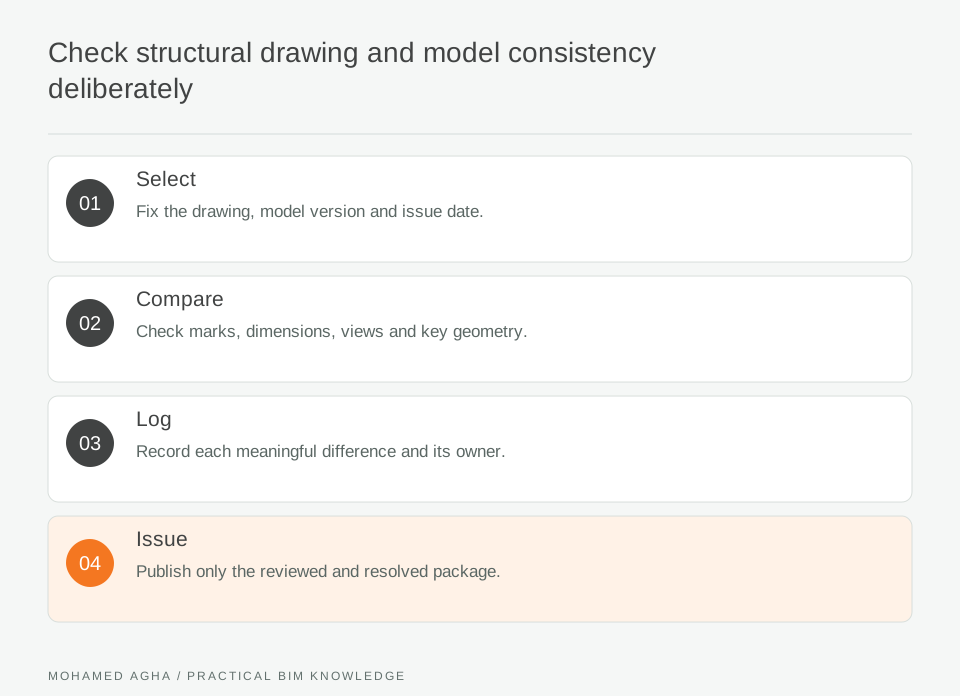
Read diagram notes
- Select
- Fix the drawing, model version and issue date.
- Compare
- Check marks, dimensions, views and key geometry.
- Log
- Record each meaningful difference and its owner.
- Issue
- Publish only the reviewed and resolved package.
Use revision information as navigation
Revision clouds and schedules help a reader find documented changes. They do not establish that every affected view has been checked. Autodesk documents how clouds are associated with revisions and how sheet revision schedules can also contain additional entries. Review that configuration in the actual template. A cloud around the plan change should lead the checker to affected sections and schedules, even when those secondary changes are less visually obvious.
Trace a changed transfer beam
Imagine beam TB-17 changes depth and mark after a services review. The plan tag updates, but an enlarged section still contains a manually typed depth and a schedule filter excludes the new mark. The checker records three linked discrepancies: annotation, schedule inclusion and drawing reference. After correction, re-export the affected sheets and compare them with the accepted model revision. Closing the plan comment alone would leave two issued representations unresolved.
Keep a compact reconciliation record
Record the member, drawing/view, observed discrepancy, responsible author and verified replacement issue. Group related findings around the design change to avoid duplicate, disconnected comments. The aim is a coherent information package: model identity, graphical representation and written instructions agreeing within their stated purposes. This review supplements discipline checking; it cannot confirm structural adequacy simply because all documents now show the same value.