

Design a view around one question
A useful review view is built around a question the reviewer needs to answer: are primary beams visible at this level, are openings coordinated, or which elements still need a design response? Start by naming the question and the model scope. A single overloaded view can hide exceptions under too many colors and categories. Separate framing, slab openings, vertical elements, and issue status into distinct views when that makes the decision clearer. The view is a review instrument, not a substitute for design documents; note the model revision and intended use so screenshots and comments remain interpretable later.
Create a rule-based filter
Revit view filters can select categories and apply parameter rules, then control visibility and graphic appearance. The BIM Pure filter guide walks through that rule-based setup and explains that filters are added to individual views. For a structural model, a useful rule could highlight framing with a review-status parameter set to “For coordination,” or distinguish elements with a temporary design package code. Choose parameters that the authoring team actually populates and define permitted values. Test the filter against known elements before relying on it. If the parameter is blank or inconsistent, the view can look reassuring while omitting the elements it was meant to show.
Apply the filter through a view template
A filter configured in one view does not automatically govern every similar view. BIM Pure describes adding filters to view templates so their settings can be applied consistently across multiple views. Build a template for each purpose and document what it controls: visibility, filters, detail level, discipline, phase, and scale as appropriate. Then assign it to the intended plans or sections and confirm the template controls the relevant settings. Revit options differ by release and project standards, so verify the actual template properties. Avoid one all-purpose template that forces presentation graphics onto analytical or construction review views.
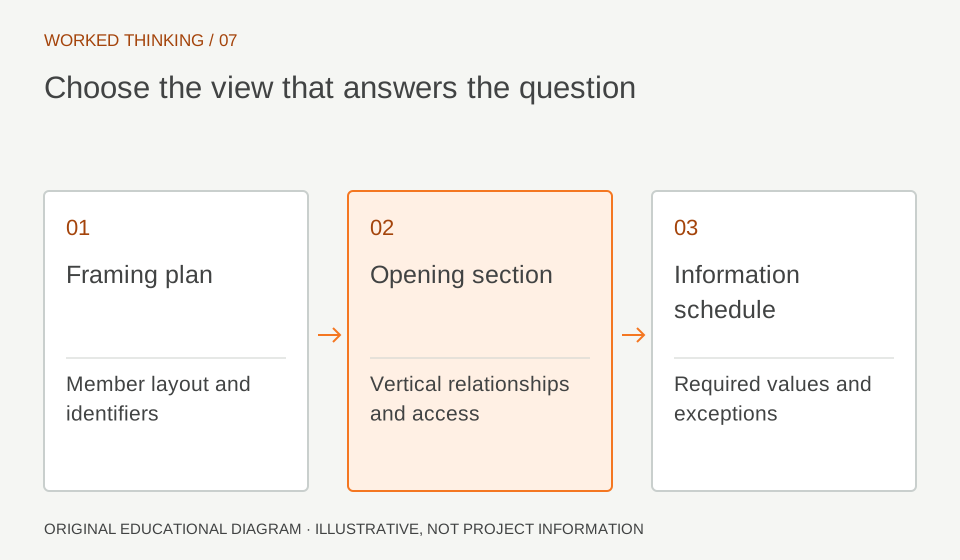
Read diagram notes
- Framing plan
- Member layout and identifiers
- Opening section
- Vertical relationships and access
- Information schedule
- Required values and exceptions
Use visual states with care
Color and line style can help a reviewer spot categories and statuses quickly. For example, a temporary orange override can call attention to transfer framing in a coordination view, while a separate pattern marks openings pending review. Keep the legend close to the view or in the issue package, and use a small, stable set of visual states. Avoid assigning color meanings that conflict with project standards or accessibility needs. The graphic override communicates a classification only; it does not validate geometry, dimensions, capacity, or approval. Record the underlying parameter and rule so others can inspect why each element received its appearance.
Add a controlled selection when rules are not suitable
Some review scopes are hand-picked, such as a set of beams around one transfer zone. The BIM Pure guide notes that a saved selection can be used as a selection filter when parameter rules do not express the scope. Use this sparingly: saved membership can become stale after elements are added, replaced, or split. Give the selection a clear name, record its purpose, and review its members after model changes. If the scope can be described by stable parameters, a rule is easier to audit and reproduce. A one-time selection remains useful for focused investigation, provided its temporary status is clear.
Build a small structural review set
Start with a practical set: framing plan per level, one section through critical transfer zones, slab-opening plan, and an analytical view when the task includes analysis connectivity. Add a schedule when the reviewer must check identifiers, sizes, levels, materials, or status values. Use a naming convention that states discipline, zone, and purpose, and avoid using working views as issued sheets without review. BIM Pure notes that Revit’s Internal Origin is fixed and can be relevant to some CAD exports. Coordinate exchange should still follow the project’s agreed shared-coordinate setup and be checked in the receiving tool.
Prove the view catches a known case
Before issuing the review set, test it with a known condition: one beam that should be highlighted, one element that should remain hidden, and one element with a missing parameter. Confirm each behaves as expected. Ask a second reviewer to open the same model and view template, then compare what appears. Record template name, filter rules, view name, and model revision with the review. If the view misses an element, correct the rule or parameter workflow and repeat the check. Treat the saved views as a repeatable lens: they improve consistency, while the engineering reviewer still judges the result.